


If you are starting your journey into websites, hosting, or blogging, chances are you have already heard about cPanel. For beginners, it’s feels confusing at first. But once you understand it step by step, things become much easier. One of the most important tasks you will perform inside hosting is managing your this file system. Whether you are uploading images, HTML pages, themes, or plugins, everything depends on how well you understand the cPanel file structure.
Table of Contents
1. What is cPanel File Manager ?
The cPanel File Manager is a tool that allows you to manage every cPanel file of your website directly from your browser. You don’t need extra software like FileZilla or FTP clients. You just log in to cPanel, open File Manager, and handle your cPanel files tasks from there. Each website has folders and files behind the user interface. These are all part of your cPanel file structure. Your homepage, images, videos, scripts, themes everything exists as a file stored on the server. So when you upload content, you are actually uploading a file to the hosting server.
2. Why Learning cPanel File Manager Is Important?
Understanding how to manage a cPanel file Manager gives you Control. You are no longer fully dependent on developers or hosting support. You can upload your own cpanel file, fix broken links, replace images, and even troubleshoot basic issues. Some benefits of understanding cpanel file management are:
- You can upload website files easily using cpanel file tools
- You can delete unwanted cpanel file clutter
- You can organize folders containing diffrent files
- You can backup your website by downloading important cPanel file data
- You can save time by directly editing from cPanel file Manager
- Editing Files Directly Inside cPanel File Manager
Once you master handling a cpanel file, website management becomes much more comfortable.
3. How to Access cPanel File Manager ?
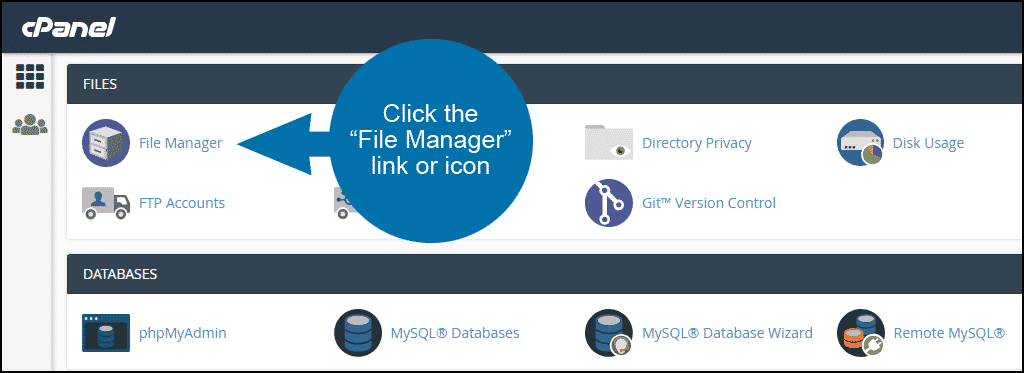
To start working with your file manager, follow these steps:
- Login to your hosting account
- Open cPanel dashboard
- Locate the File Manager option
- Click on it and you will see your entire cpanel file structure
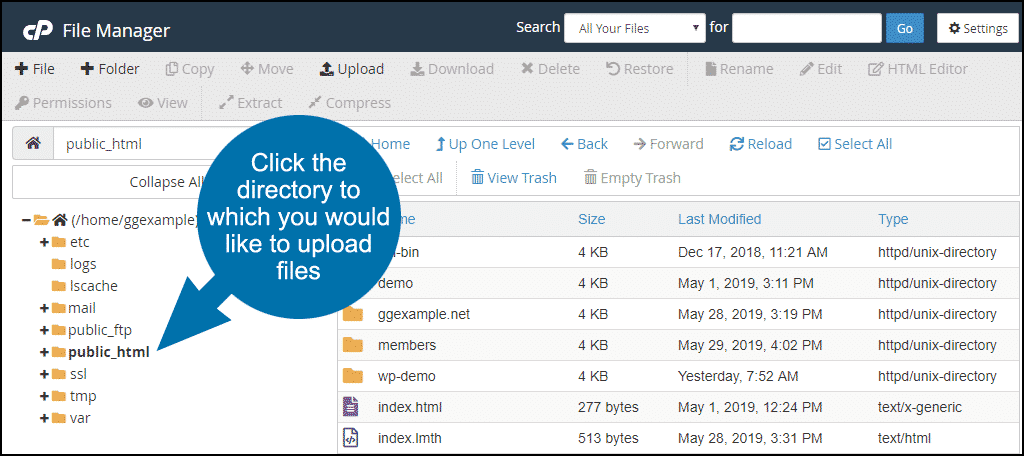
Inside file manager, you will find folders like public_html, wp-content, uploads, etc. Every folder contains some form of cPanel file that controls your website. The most important folder is usually public_html because that is where your main cpanel file content is stored.
4. Understanding Folder Structure in cPanel File Manager
Before uploading any file, you must understand where to upload it.
- public_html: Main folder where website cPanel file exists
- wp-content: Stores themes, plugins, and media cPanel file (for WordPress)
- uploads: Stores image and media
- backups: Sometimes stores backup file copies
If you upload a file in the wrong folder, your website may not work correctly. That’s why understanding the cPanel file Manager structure is extremely important.
5. How to Upload Files Using cPanel File Manager ?
Uploading files is very easy once you try it. Steps to upload file in CPanel File Manager
- Open File Manager
- Navigate to the folder where you want to upload the in cPanel
- Click on the Upload button
- Select the file from your computer
- Wait for upload to complete
- Your file will now appear inside the folder
This is how you can successfully upload your first file. Whether it is an image, PDF file, HTML cpanel file, or ZIP file, the method remains almost the same.
6. Uploading ZIP Files in cPanel File Manager
Many developers upload a ZIP file because it is faster. For example, if you have 50 website files, instead of uploading each file one by one, you upload a single ZIP file. After uploading the ZIP file, you simply right click and choose Extract. This automatically creates all the individual file items inside your folder. This trick saves a lot of time and makes cpanel file handling much more efficient.
7. Common Mistakes Beginners Make with cPanel File Manager
Beginners make small mistakes when dealing with cPanel file Manager system. These mistakes are normal, but you should try to avoid them. Common mistakes include:
- Uploading file in the wrong folder
- Deleting important system files
- Renaming core cPanel file accidentally
- Forgetting to extract ZIP file
- Overwriting an existing file without backup
- Always take backup of important files before making changes.
8. Editing Files Directly Inside cPanel File Manager
Always take backup of important files before making changes. It’s a simple habit that can save your website. Another powerful feature of the cPanel file manager is editing. You can directly edit text based cpanel file like HTML, CSS, or PHP without downloading them. Steps are:
- Right click on the cPanel file
- Click Edit
- Make changes
- Save
This feature is extremely useful for quick changes. Instead of downloading the file, editing it, and re uploading, you can just edit the file inside cPanel File Manager itself.

9. Organizing cPanel File Properly
As your website grows, you will have hundreds of file items. If you don’t organize them, it becomes messy and confusing. You should:
- Create folders for different types of file
- Delete unused files regularly
- Rename files properly
- Keep backup of important files
Good organization of files reflects professionalism and also improves your own productivity.
10. Final Thoughts
Learning to use the cPanel File Manager is one of the most practical digital skills for beginners. At first, every cPanel file Manager looks confusing. But once you practice regularly, you gain confidence. Handling a cPanel file Manager becomes as normal as using your phone gallery.
The more you work with a cPanel file Manager, the more independent you become. You stop fearing technical panels. Instead, you start exploring new features. And honestly, that confidence matters a lot in today’s digital world.
Leave a Reply