


Open a website that shows “Not secure” in the address bar, and most visitors leave within seconds. That warning appears when a site has no SSL certificate, and it can cost you traffic, sales, and trust. The good news is that securing your website is quick, and with cPanel you can usually finish it in a few minutes without any coding.
Table of Contents
SSL Certificate Basics: Meaning, Purpose and Benefits for Your Site
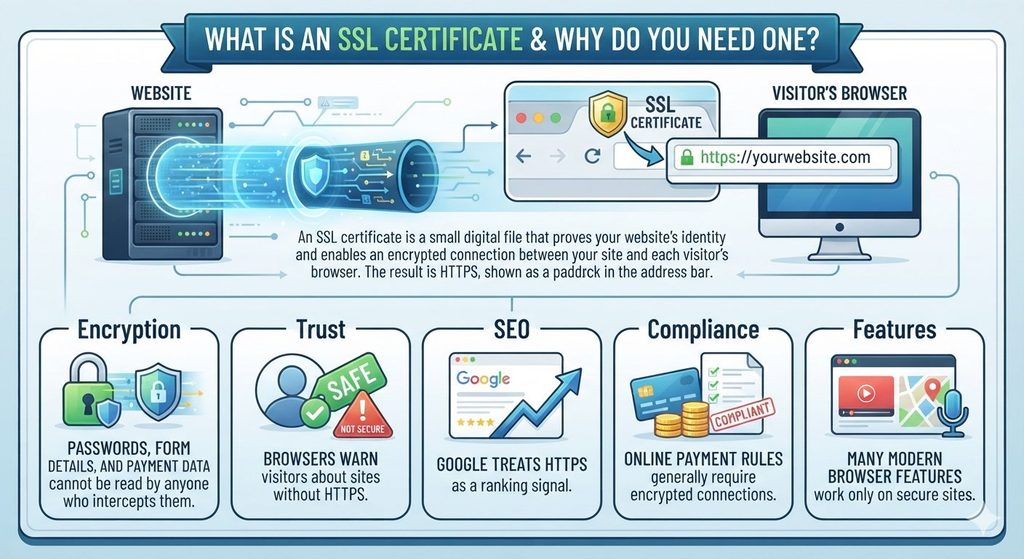
An SSL certificate is a small digital file that proves your website’s identity and enables an encrypted connection between your site and each visitor’s browser. The result is HTTPS, shown as a padlock in the address bar. Strictly speaking, the modern protocol is called TLS, but “SSL” is still the common name, so this guide uses it.
Here is why every website needs one:
- Encryption: passwords, form details, and payment data cannot be read by anyone who intercepts them.
- Trust: browsers warn visitors about sites without HTTPS.
- Search Visibility: Google gives secure sites a slight edge in rankings
- Compliance: online payment rules generally require encrypted connections.
- Features: many modern browser features work only on secure sites.
How HTTPS Works in Simple Words
Before any page loads, the browser and your server run a short security check. The server shows its certificate, which was signed by a trusted certificate authority (CA). The browser checks that the certificate is valid, has not expired, and matches the domain name. If everything is correct, both sides agree on a secret session key and use it to encrypt all further data.
A certificate contains the domain name, the owner’s details, the issuer, the validity dates, and a public key. The matching private key stays on your server and must never be shared with anyone. The whole check finishes in milliseconds, so visitors never see it. All they notice is the padlock.
Types of SSL Certificates
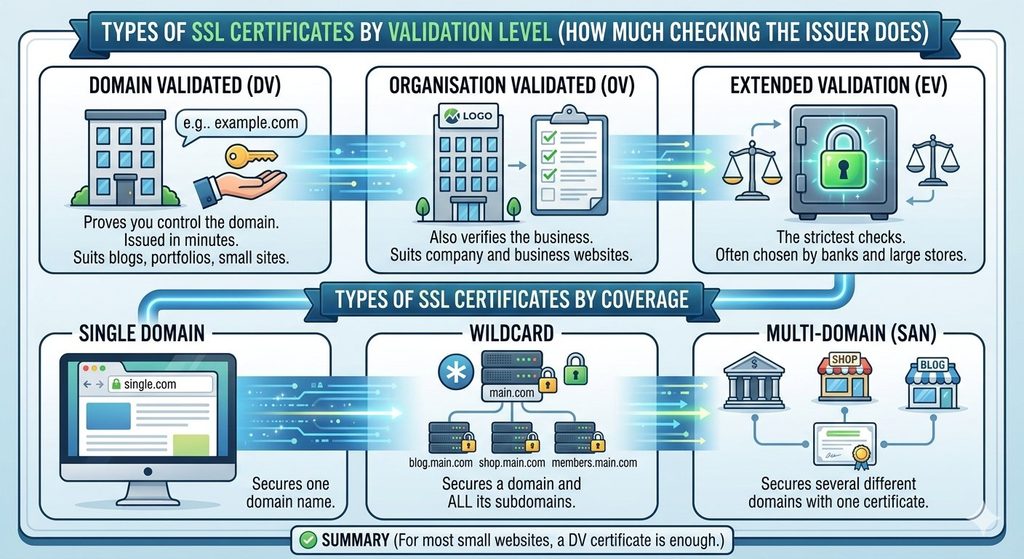
Certificates differ by validation level (how much checking the issuer does) and by coverage.
By validation:
- Domain Validated (DV) : This is the quickest and most basic level. The issuer only checks that the person requesting the certificate can respond through the domain’s email or DNS settings, so approval can come in minutes. It works well for blogs, portfolios, and small personal sites.
- Organisation Validated (OV): also verifies the business. It suits company and business websites.
- Extended Validation (EV): the strictest checks, often chosen by banks and large stores.
By coverage:
- Single domain: secures one domain name.
- Wildcard: A wildcard certificate covers your main domain plus every subdomain under it, such as blog.yourdomain.com or shop.yourdomain.com.
- Multi-domain (SAN): secures several different domains with one certificate.
Single or wildcard? A site with just one domain name can save money with a single-domain certificate. If you run several subdomains, such as a blog, a shop, and a members area, a wildcard saves you from managing many separate certificates.
For most small websites, a DV certificate is enough.
Free vs Paid: Which Certificate Should You Choose?
A free SSL certificate from Let’s Encrypt or AutoSSL encrypts traffic just as strongly as a paid one. This keeps your keyword and the spot where the external link goes. The difference lies in validation level, warranty, support, and how long each lasts.
| Feature | Free certificate | Paid certificate |
|---|---|---|
| Cost | ₹0 | From about ₹500 to ₹30,000 or more |
| Validation | DV only | DV, OV, or EV |
| Renewal | Automatic through AutoSSL | Manual or reseller-managed |
| Warranty | None | Often included |
| Support | Community or host | Dedicated |
The SSL certificate price depends on the type. As a rough guide, a cheap SSL certificate (basic DV) costs about ₹500 to ₹2,000 a year from resellers, OV certificates cost about ₹3,000 to ₹10,000, and wildcard or EV options cost more. Prices change by brand and seller, so compare current rates. Recent industry rules also shorten how long public certificates may last, so check how renewal works before you pay.
If you run a blog or a small site, a free certificate is usually the smartest choice. If you run a business that handles payments or customer accounts, consider a paid OV certificate.
Before You Start
Check these basics first so the steps go smoothly:
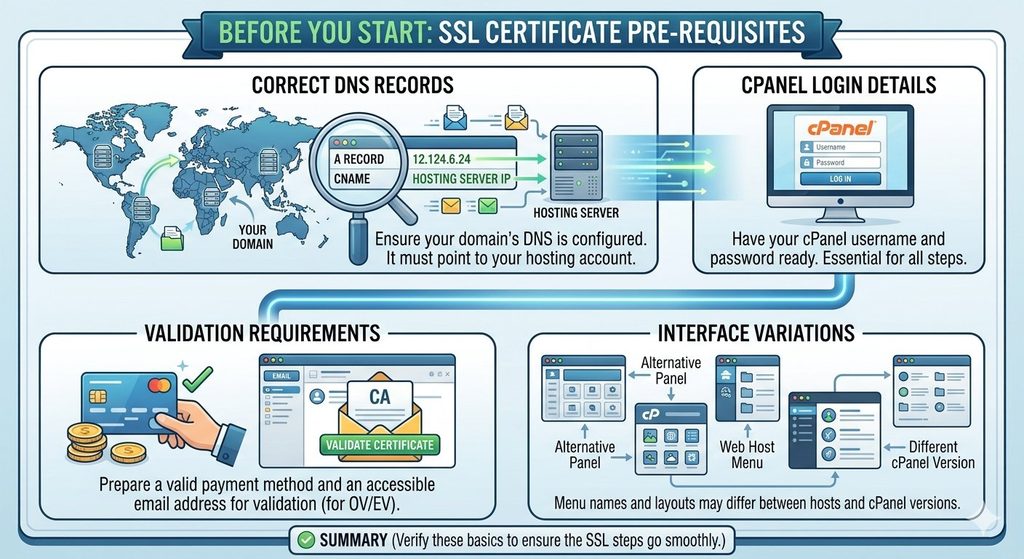
- Your domain must point to your hosting account (correct DNS records).
- You need your cPanel login details.
- Planning to purchase? Keep your payment details ready, along with an inbox you can open, because the issuer may send a confirmation email.
- Menu names can differ slightly between hosts and cPanel versions.
Step 1: Check Your Current SSL Status
- Log in to cPanel.
- Under Security, open SSL/TLS Status.
- Find your domain and its subdomains in the list.
- A green padlock means a valid certificate is installed. A red or missing padlock means the domain is not secured.
Note the expiry date of any existing certificate so you can renew it in time.
Step 2: Get a Free SSL Certificate With AutoSSL
Most hosts enable AutoSSL, which issues and renews a free SSL certificate automatically. On some servers the provider is cPanel Let’s Encrypt, a plugin that the host installs. Either way, the process for you is the same:
- On the same status page, select the domains without a certificate.
- Click Run AutoSSL.
- Wait a few minutes and refresh the page.
- Confirm that the padlock turns green.
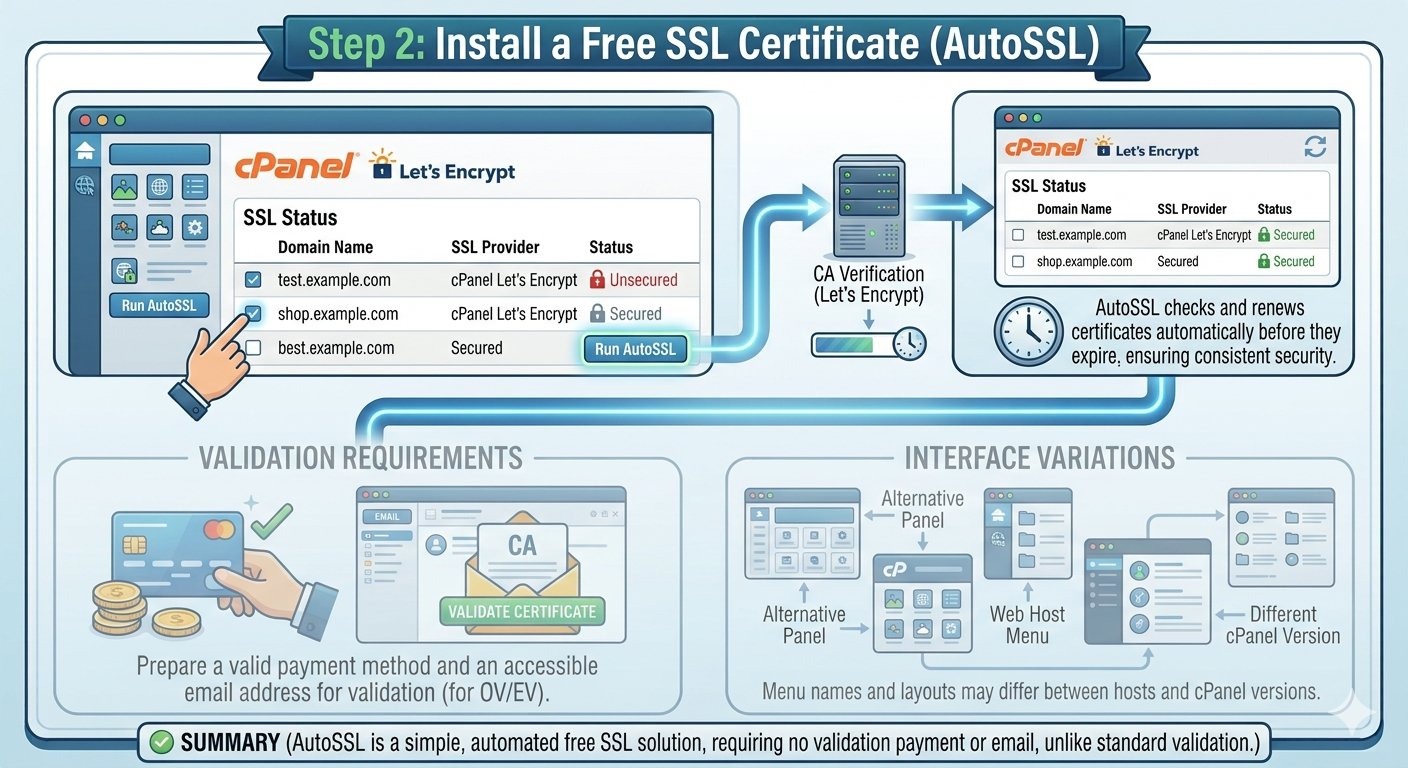
AutoSSL then renews the certificate before it expires, so you rarely need to act again. If it fails, the usual cause is a domain that does not yet point to the server. Fix the DNS, then run it again. If the option is missing, ask your host to enable it.
Step 3: Buy an SSL Certificate and Generate a CSR
If you need OV or EV validation, a wildcard, or a warranty, you will buy SSL from your host or a trusted certificate authority or reseller. Before buying, you create a CSR (Certificate Signing Request):
- In cPanel, open SSL/TLS under Security.
- Select the option for creating, viewing, uploading, or deleting certificates. If you need to keep the real label, put it in quotation marks once.
- Under Generate a new certificate, fill in the domain and your organisation details, then click Generate.
- Copy the CSR text shown.
- Buy the product, paste the CSR, and complete validation. For DV this means an email or DNS check, and OV or EV also need business documents.
When you buy SSL certificate products, check the validity period, the number of domains covered, and whether reissues are free. The authority will send you the certificate file, called a CRT, and sometimes a CA bundle.
Step 4: Install the Certificate in cPanel
Now you install the certificate. This is the standard way to install SSL certificate cPanel supports for paid products:
- Go back to SSL/TLS and choose Manage SSL sites.
- Select your domain from the list.
- Paste the certificate (CRT) into the first box. The private key normally fills in automatically if it matches.
- Paste the CA bundle if the authority gave one, or let cPanel fetch it.
- Click Install Certificate.
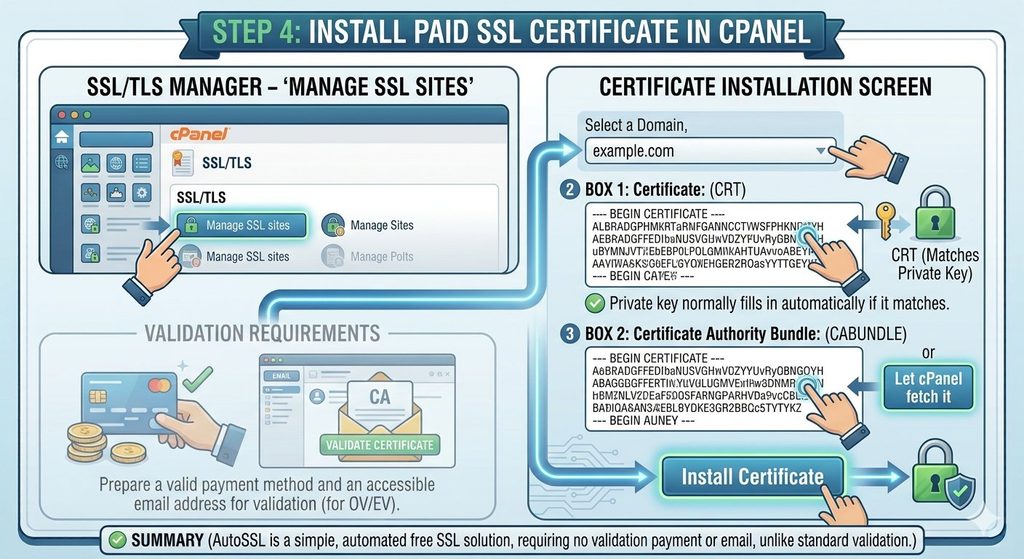
You should see a success message. If cPanel says the key does not match, the certificate was issued for a different CSR, so generate a new one and reissue it. A cPanel SSL certificate that is installed correctly shows a green padlock on the status page.
Step 5: Force HTTPS Across Your Website
Installing a certificate does not automatically send visitors to the secure version. You must redirect them:
- In cPanel, open Domains.
- Find your domain and switch on Force HTTPS Redirect.
- If your host does not offer the switch, add a redirect rule to the
.htaccessfile or use your website platform’s setting. WordPress users can also set both site addresses tohttps://.
After this, every visit to http:// goes to https:// automatically. Keep a single preferred version, either with or without “www”, to avoid duplicate pages.
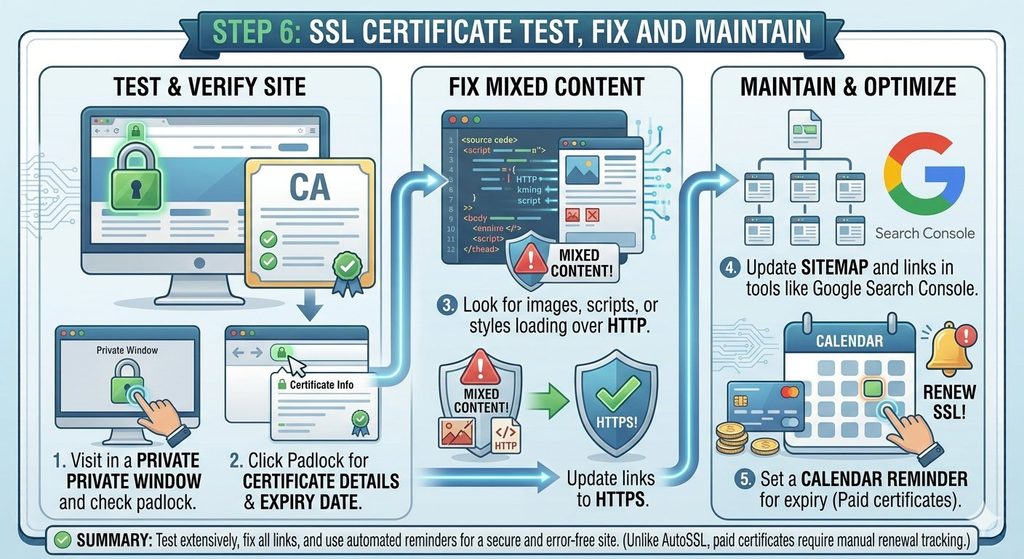
Step 6: Test, Fix and Maintain
- Visit your site in a private window and check the padlock.
- Click the padlock to confirm the certificate details and expiry date.
- Look for mixed content: images, scripts, or styles still loading over
http://. Update those links tohttps://. - Test your homepage, subpages, and contact forms.
- Update your sitemap and links in tools such as Google Search Console.
- Set a calendar reminder for expiry if you use a paid certificate.
Why HTTPS Matters for SEO and Sales
Search engines want to send visitors to safe pages, so HTTPS is treated as a small ranking signal. The bigger benefit is indirect. Visitors who see a padlock are more willing to fill in a contact form, create an account, or enter payment details, and fewer of them leave in alarm when the page loads.
For online shops, the effect on revenue can be large. A single “Not secure” warning at checkout can make a customer abandon the purchase. Even for a simple blog or portfolio, a secure connection signals that the owner takes care of the site and its readers.
Common Problems and Quick Fixes
- AutoSSL fails: check that DNS points to your hosting account and that nothing blocks the validation file.
- Certificate name mismatch: the certificate does not cover the exact domain, such as “www”. Reissue it with all needed names.
- Mixed content warning: change remaining
http://links tohttps://. - Redirect loop: your platform and the server both force HTTPS. Keep only one rule.
- “Not secure” after installation: clear the browser cache and check that the redirect is active.
- Expired certificate: run AutoSSL again or install a renewed paid certificate.
- CAA record blocks issuance: a DNS CAA record may allow only certain authorities. Add the one your host uses, or remove the restriction.
- Domain behind a proxy or CDN: the proxy may hide your server from validation. Pause it briefly or use the certificate the proxy provides.
Best Practices After Installation
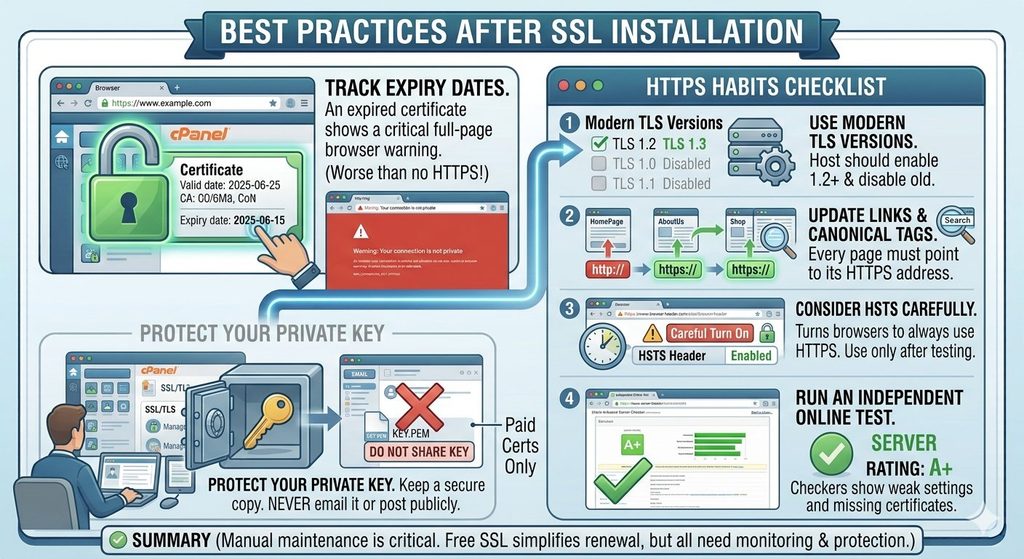
Once HTTPS is live, a few habits keep it healthy:
- Track expiry dates. An expired certificate shows visitors a full-page browser warning, which is worse than having none.
- Protect your private key. Keep a secure copy and never email it or post it publicly.
- Use modern TLS versions. Ask your host to keep TLS 1.2 or higher enabled and old versions disabled.
- Update internal links and canonical tags. Make every page point to its
https://address so search engines index one clean version. - Consider HSTS carefully. This header tells browsers to always use HTTPS, but turn it on only after you are sure everything works, because mistakes are hard to undo.
- Run an independent online test. Free server checkers show weak settings and missing intermediate certificates.
Quick Checklist
Use this list to confirm that nothing was missed:
- The domain and the “www” version both show a green padlock.
- Visitors are redirected from
http://tohttps://. - No mixed content warnings appear on key pages.
- The expiry date is noted, or automatic renewal is working.
- The private key is stored safely.
- The sitemap and search console property use the
https://address.
Conclusion
Securing your website with HTTPS no longer needs to be difficult or expensive. Check your status, use AutoSSL for a free SSL certificate or generate a CSR to buy a paid one, install it, force HTTPS, and test the result. Following these six steps protects your visitors’ data, removes the “Not secure” warning, and supports your search visibility.
Choose the certificate that fits your site, keep an eye on renewals, and recheck after any big website change such as a redesign, a move to a new host, or a new domain. A few minutes of care now prevents warnings, lost visitors, and security problems later.
Frequently Asked Questions (FAQs)
1. What is an SSL certificate?
An SSL certificate is a digital file that enables an encrypted HTTPS connection between a website and its visitors and confirms the site’s identity.
2. Is a free SSL certificate safe?
Yes. A free one provides the same encryption strength as a paid one. Paid options add higher validation, warranty, and support.
3. How do I install an SSL certificate in cPanel?
Open SSL/TLS, choose Manage SSL sites, select your domain, paste the certificate and CA bundle, and click Install Certificate.
4. What is cPanel Let’s Encrypt?
It is a plugin installed by the hosting provider that issues free certificates automatically for your domains, usually through AutoSSL.
5. How much does an SSL certificate cost?
The SSL certificate price ranges from free to about ₹500 for basic cheap options, up to ₹30,000 or more for EV and wildcard types, depending on the seller.
6. Where can I buy an SSL certificate?
You can buy SSL certificates from your hosting provider, a certificate authority, or an authorised reseller. Compare validity, coverage, and support before paying.
7. How long does installation take?
AutoSSL usually finishes in a few minutes. Paid certificates depend on validation, which may take minutes for DV and days for OV or EV.
8. Why does my site still show “Not secure” after installation?
The usual causes are mixed content, a missing HTTPS redirect, or cached pages. Fix the links, enable the redirect, and clear your cache.
9. Do I need to renew my SSL certificate?
Yes. AutoSSL renews free certificates automatically, but paid certificates need to be renewed or reissued before they expire.
10. Does SSL improve SEO?
HTTPS is a lightweight ranking signal, and it also improves user trust, which can help engagement and conversions.
Leave a Reply