
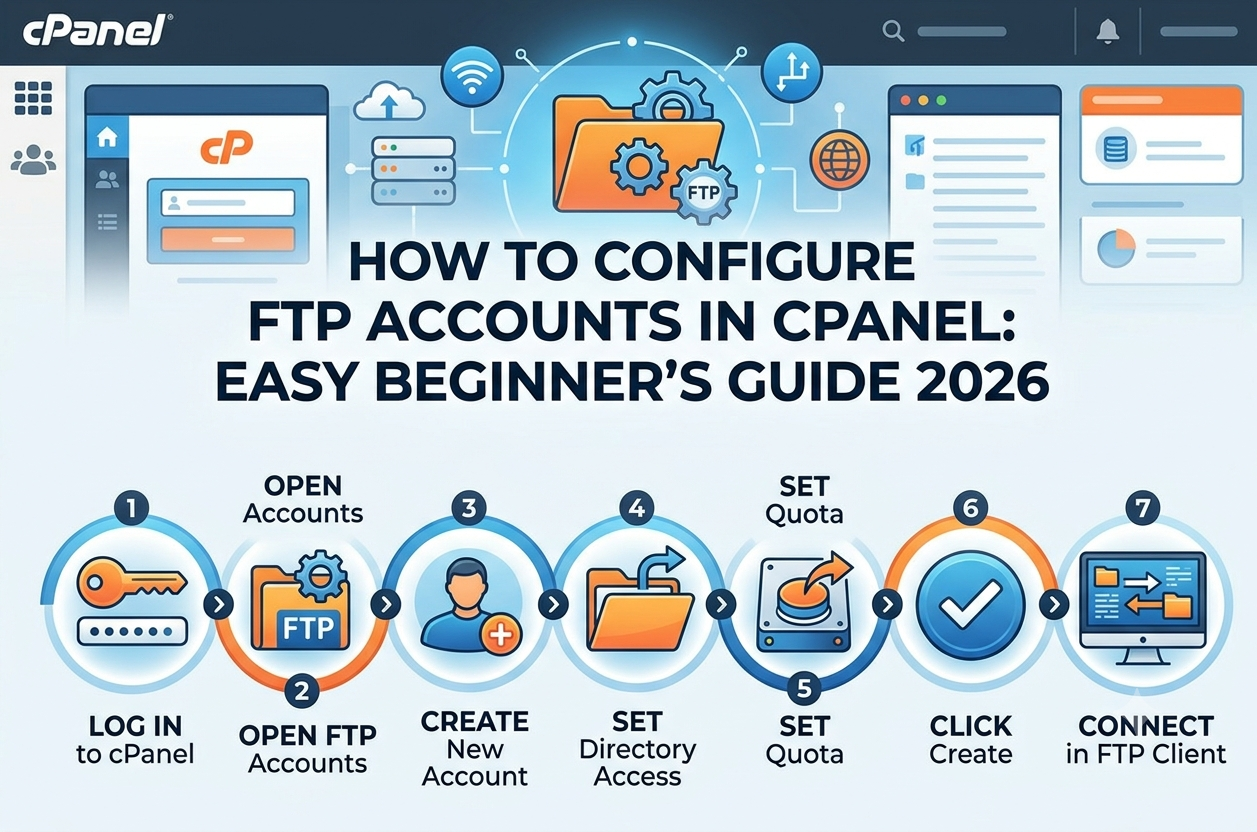


Introduction
FTP stands for File Transfer Protocol. Managing website files is an essential part of running a website. Whether you own a blog, an online store, or a business website, you may need to upload images, download files, update website content, or transfer files between your computer and your hosting server. Although cPanel provides a built-in File Manager for handling website files, File Transfer Protocol (FTP) offers another convenient way to transfer files between your computer and a web hosting server. With cPanel, website owners can create separate accounts and assign them access to specific directories. This makes file management more organised and allows users to access the files they need without necessarily accessing the entire website.
Table of Contents
What is FTP in cPanel

FTP stands for File Transfer Protocol. It is a standard method of transferring files between a local computer and a remote server over a network. In web hosting, It allows website owners to upload, download, and manage files stored on their hosting accounts. For example, suppose you have created a website on your computer and want to publish it online. cPanel is a web-based hosting control panel that provides tools for managing website files, databases, email accounts, domains, and other hosting features. Depending on the hosting provider and account configuration, cPanel also allows users to create and manage accounts. Each account can have its own username, password, and directory access.
FTP vs. SFTP: What is the Difference?
| Feature | FTP | SFTP |
| Full Form | File transfer protocol | SSH File Transfer Protocol |
| Security | Standard FTP does not encrypt data | Encrypts data through SSH |
| Connection | Use FTP server settings and ports | Usually use SSH on port 22 |
| Credentials | May be transmitted without encryption | Protected by SSH encryption |
| Common Use | Basic file transfer where supported | Secure file transfer |
For security, prefer SFTP or FTP over TLS (FTPS) when supported by your hosting provider. Standard, unencrypted it should generally be avoided when transferring sensitive information. Also, SFTP is not simply a secure version. It is a different protocol and may require SSH access or specific server configuration.
Benefits of Creating FTP Accounts in cPanel
Creating FTP accounts can make website management easier in several ways.
- Convenient file transfers: Upload or download website files using this client instead of managing every file through a browser.
- Better access control: Assign each FTP account to a specific directory instead of granting access to every website file.
- Efficient file management: Transfer multiple files and folders through client.
- Organised website maintenance: Maintain separate access for different projects, websites, or team members.
Remember that creating account does not automatically make file transfers secure. Security also depends on the protocol, connection settings, passwords, and account permissions.
How to Configure FTP Accounts in cPanel: Step-by-Step Guide
Follow these steps to create an account and prepare it for connecting to your hosting server.
Step 1: Log In to Your cPanel Account
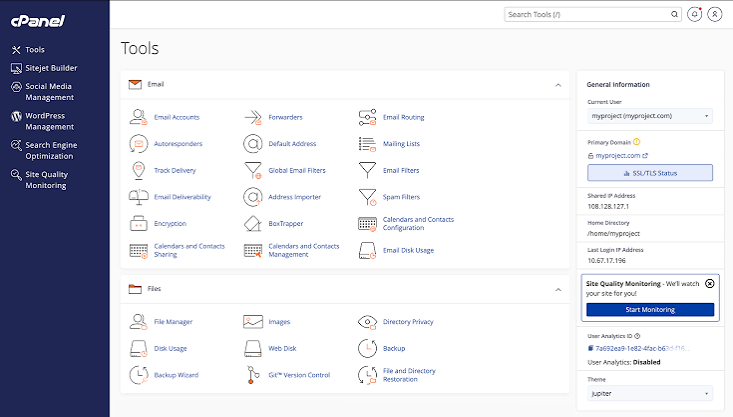
First, open the cPanel login page provided by your hosting company. Enter your cPanel username and password, then sign in. After logging in, you will see the cPanel dashboard. It contains different sections for managing your website and hosting account.
Depending on your hosting provider, you may find tools for:
- Files
- Domains
- Databases
- Security
- Metrics
Look for the Files section.
Tip: If you cannot find the cPanel login page, check your hosting welcome email or your hosting provider’s customer dashboard.
Step 2: Open Accounts
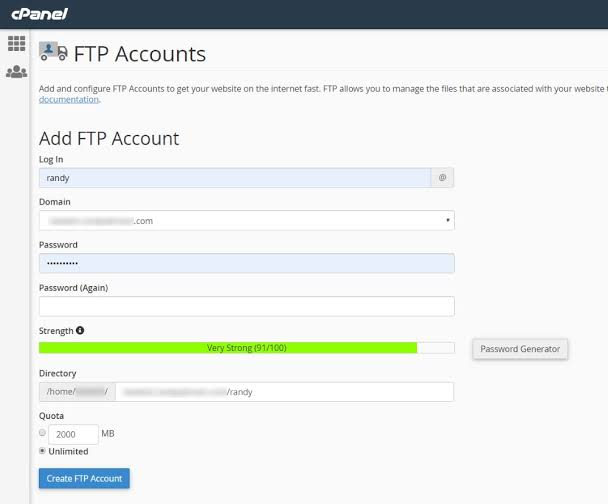
In the Files section, locate and select FTP Accounts. Depending on your hosting provider’s configuration, the page may display options such as:
- Add Account
- Username
- Domain
- Directory
- Quota
- Manage Accounts
You may also see existing accounts.
If the Accounts option is missing, your hosting provider may have disabled it or may manage access through a different interface.
Step 3: Create a New Account
On the Accounts page, locate the form for creating a new account.
Enter the required information.
Username: Choose a username for the account.
Domain: Select the domain associated with the website you want to manage, if the option is available.
Password: Create a strong password that is difficult to guess.
Password confirmation: Re-enter the password if the form requests it.
The complete username may include the domain, depending on your hosting configuration.
For example:
websiteeditor@example.com
This is only an illustrative example. Use the username displayed by your own cPanel account. Avoid using simple passwords or reusing passwords from other accounts.
Step 4: Set the Account’s Directory
This is one of the most important settings when configuring an account.
For example, a website’s primary directory may be:
public_html
If you want the account to access only a specific folder, you might use:
public_html/blog
The exact directory depends on your website structure.
Why is directory access important?
Suppose you hire a freelancer to update your blog images. You can create an account restricted to the relevant directory, provided your hosting configuration supports the intended restriction. Granting access only to the necessary files helps reduce the risk of accidental changes or unauthorised access.
Important: Verify the directory carefully before creating the account. In many cPanel configurations, the directory field determines the account’s accessible directory, and changing it later may not be straightforward.
Step 5: Set the Storage Quota
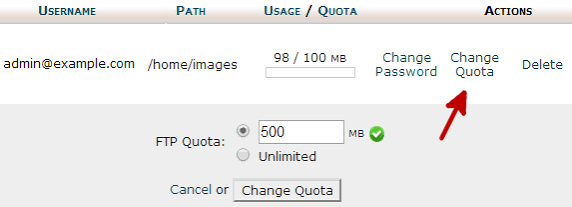
Some cPanel accounts allow you to configure storage quota.
A quota limits the amount of storage an account can use. Depending on the hosting configuration, you may be able to set a specific limit or select an unlimited option.
For example, if you are creating an account for a small project, you may want to assign a reasonable storage limit.
Before selecting a quota, consider:
- The size of the files being transferred.
- The available storage in your hosting plan.
- Whether the account is used for large media files.
- Your hosting provider’s storage restrictions.
Remember that quota does not necessarily represent additional storage purchased for your hosting account. Overall storage availability and account-level restrictions still apply.
Step 6: Create the Account
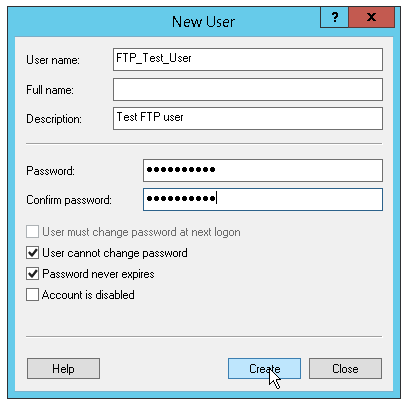
After entering the username, password, directory, and quota, review all the details.
Check that:
- The username is correct.
- The password meets the required security rules.
- The directory points to the intended location.
- The quota is appropriate for your needs.
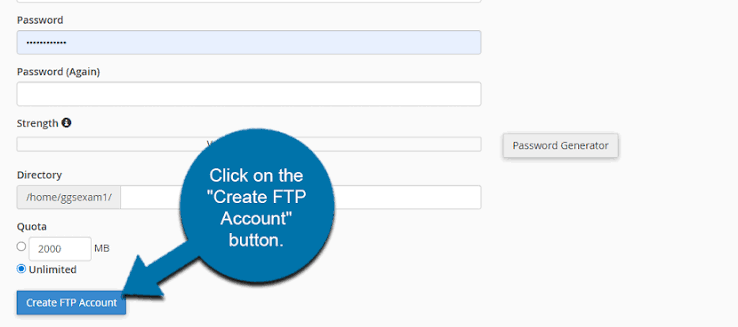
Click Create Account or the equivalent button shown in your cPanel interface.
If the account is created successfully, cPanel should display a confirmation message.
The new account may also appear in the list of accounts.
You can now use its credentials and connection details in a compatible FTP client.
Step 7: Connect Using an FTP Client
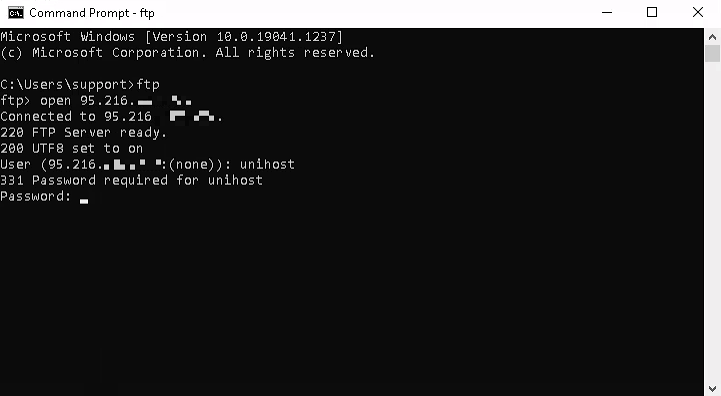
Creating an account is only part of the process. To transfer files, you need a compatible client or another supported connection method.
Popular clients include applications such as FileZilla.
To connect, you generally need the following information:
| Setting | What to Enter |
| Host | The FTP hostname provided by your hosting provider |
| Username | Your newly created username |
| Password | The password assigned to the account |
| Port | The port specified by your hosting provider |
| Protocol | FTP, FTPS, or SFTP, depending on server request |
For standard, port 21 is commonly used. SFTP typically uses port 22, while explicit FTPS often starts on port 21. Your hosting provider may use different settings.
For a secure connection: Select SFTP or FTP over TLS only when your hosting server supports the chosen protocol and provides the necessary connection details.
Open your client, enter the connection information, and connect to the server.
If the connection succeeds, you should be able to browse the directories accessible to that account. You can then upload files from your computer to the server or download files from the server to your computer.
Security tip: Avoid transferring sensitive information through an unencrypted connection. Do not share your password publicly or store it in an unsecured document.
How to Upload Website Files Using theAccount
After establishing a connection, you can begin transferring website files.
Follow these steps:
- Open your client and connect to the hosting server.
- Locate the local directory containing the files on your computer.
- Find the destination directory on the remote server.
- Select the files you want to upload.
- Transfer the files to the correct remote directory.
- Wait for the transfer to finish.
- Open your website in a browser to verify that the files are available.
For example, if you upload an image to the correct website directory, you can check whether the image appears on your website.
Important: Uploading files to the wrong directory may prevent them from appearing on your website. Before transferring files, confirm the document root and destination directory. It is also a good idea to back up important website files before replacing or deleting existing content.
Conclusion
Configuring accounts in cPanel is a useful way to manage website files and simplify file transfers. By creating separate accounts, assigning appropriate directory access, and connecting through a compatible client, website owners can upload and download files without relying entirely on cPanel File Manager. However, successful configuration involves more than creating a username and password. Choosing the correct directory, using secure connection settings, and managing account permissions are equally important.
Whether you manage a personal blog, a business website, or several online projects, understanding accounts can make routine website maintenance easier.
For the best results, use encrypted file transfers, keep your credentials secure, and remove accounts when they are no longer needed.
FAQs
1. What is an account in cPanel?
An account in cPanel allows a user to connect to a hosting server and transfer website files. Depending on its configuration, the account may have access to a specific directory.
2. How do I create an FTP account in cPanel?
Log in to cPanel, open Accounts under the Files section, enter the username and password, select the directory, configure the quota if available, and create the account.
3. Is FTP free in cPanel?
This account management is generally included with hosting plans that provide the Accounts feature. However, available features and account limits depend on the hosting provider and plan.
4. What is the difference between FTP and SFTP?
It is a file transfer protocol that does not encrypt data by default. SFTP uses SSH to provide an encrypted connection for transferring files.
5. Which port does FTP use?
Standard commonly uses port 21 for control connections. SFTP typically uses port 22. Secure it configurations and data connections may use other ports, depending on the server.
6. Can I create multiple accounts in cPanel?
Yes, many cPanel hosting plans allow multiple FTP accounts. The number of accounts and available permissions depend on the hosting provider and plan.
7. Can an account access all website files?
Not necessarily. Its access depends on the directory assigned to the account and the server’s permissions and configuration.
8. Why is my account not connecting?
Common causes include incorrect credentials, an incorrect hostname or port, firewall restrictions, unsupported connection settings, or server-side issues.
9. Is it safe for transferring website files?
Unencrypted it is not recommended for sensitive transfers because it does not protect credentials and data in transit. Use SFTP or FTPS when supported by your hosting provider.
10.Can I delete an FTP account without deleting my website?
Deleting an account normally removes that account’s access, not the website files themselves. However, confirm the deletion message and your hosting provider’s behaviour before proceeding.
Leave a Reply