



Ever wondered why cPanel is beginner friendly ? If you’ve ever tried managing a server using only the command line, you already know how intimidating it can feel—especially if you’re just starting out. Long commands, unfamiliar errors, and the constant fear of “breaking something” are all part of the early learning curve. That’s exactly where it comes in.
It is one of the most popular web hosting control panels in the world, and for good reason. It turns complex server management tasks into simple, click-based actions. Whether you want to host a website, manage email accounts, or handle databases, it makes the process far less overwhelming.
In this guide, we’ll walk through how to install cPanel on a server in 2026, step by step, in a way that’s easy to understand—even if this is your first time touching a server.
Table of Contents
What Is cPanel and Why Do Beginners Love It?
At its core, it is a web-based control panel that allows you to manage your server without memorizing hundreds of Linux commands. It usually comes bundled with WHM (Web Host Manager), which gives administrative-level control over the server.
It is always advised to beginners to prefer cPanel as it offers clean and visual interface.Most tasks can be done with a few clicks and It supports email, databases, domains, backups, and security tools Also There’s a huge amount of documentation and community support .
In short, it makes server management feel less like rocket science and more like using a regular application.
Before You Install cPanel: Things You Must Prepare
Before jumping into the installation, there are a few important preparations you shouldn’t skip. Missing any of these can lead to installation failures later.
1. A Fresh Server
cPanel should be installed on a clean operating system. Avoid installing it on a server that already has hosting software like Apache, MySQL, or another control panel configured manually.
2. Supported Operating Systems (2026)
As of 2026, cPanel officially supports:
- AlmaLinux 8 & 9
- Rocky Linux 8 & 9
- CloudLinux
Tip: AlmaLinux is the most beginner-friendly and widely recommended choice.
3. Minimum System Requirements
- RAM: At least 2 GB (4 GB recommended)
- Disk Space: Minimum 20 GB
- CPU: 1 core (2+ preferred)
- Root Access: Required
4. Valid cPanel License
You can install cPanel without a license initially, but you’ll need one to fully activate and use it.
Step 1: Connect to the Server Using SSH
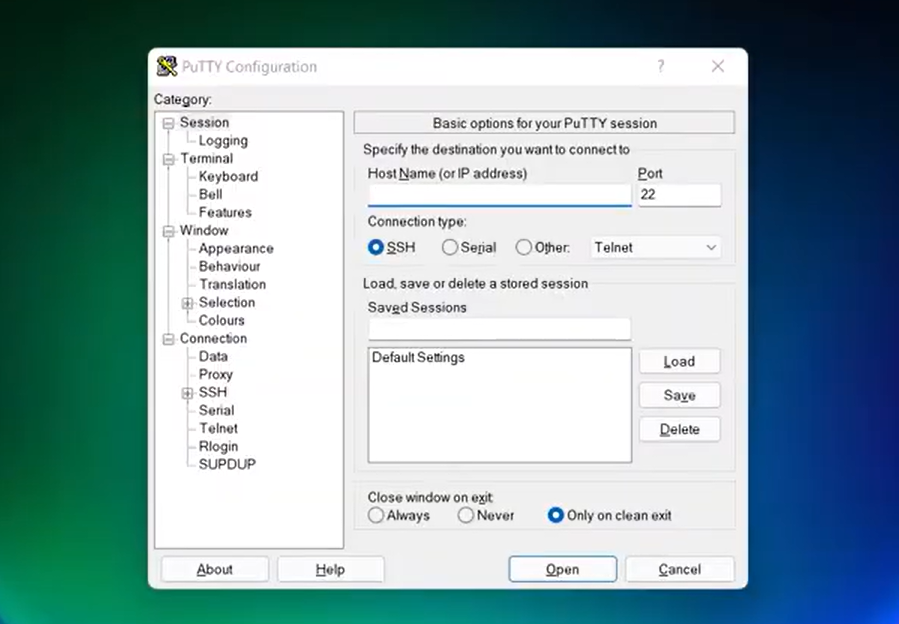
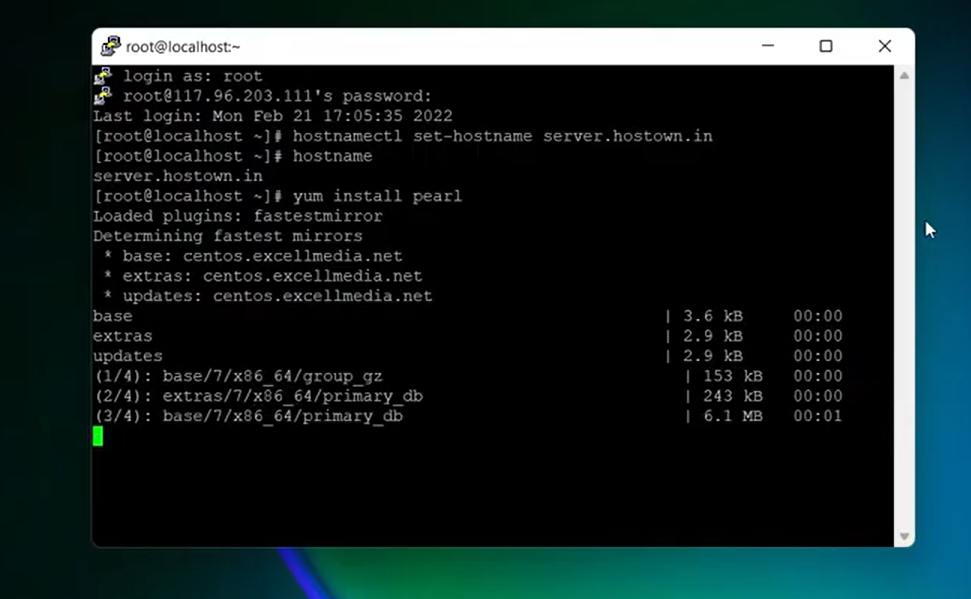
To install cPanel, you’ll need to access your server using SSH (Secure Shell).
If you’re on Windows, you can use tools like PuTTY.
If you’re on Linux or macOS, open the terminal.
Step 2: Update Your Server
Before installing anything, it’s always a good idea to update your system. This helps prevent compatibility issues.
Step 3: Set a Proper Hostname
cPanel requires a fully qualified domain name (FQDN) as the server hostname.
Step 4: Download the cPanel Installer
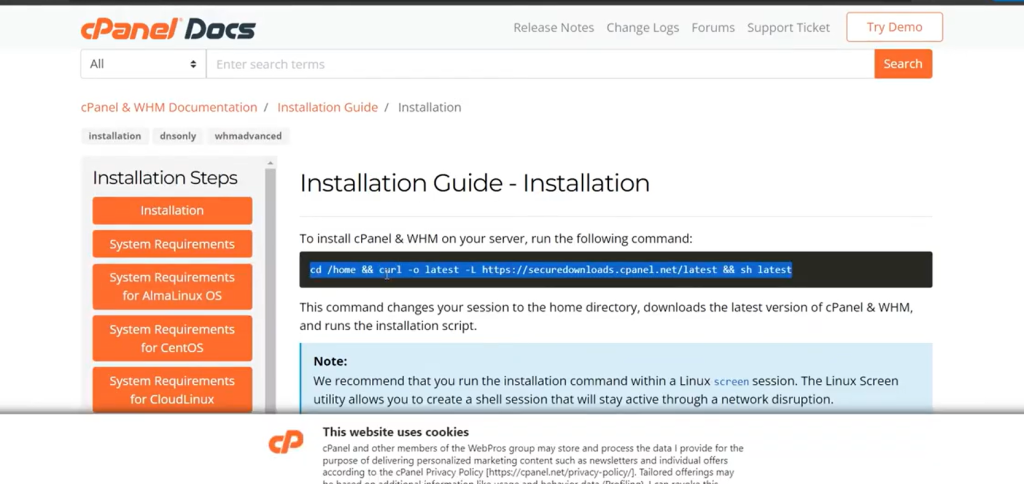
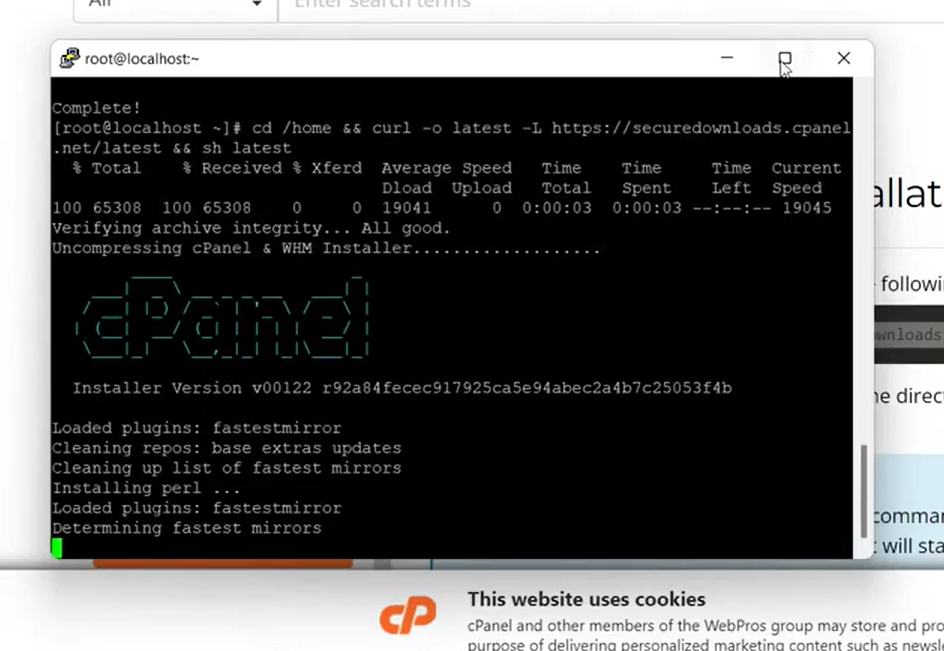
Now comes the main part. Navigate to the home directory. Download the official cPanel installation script:
This script handles everything—from installing required packages to configuring services.
Step 5: Run the cPanel Installation Script
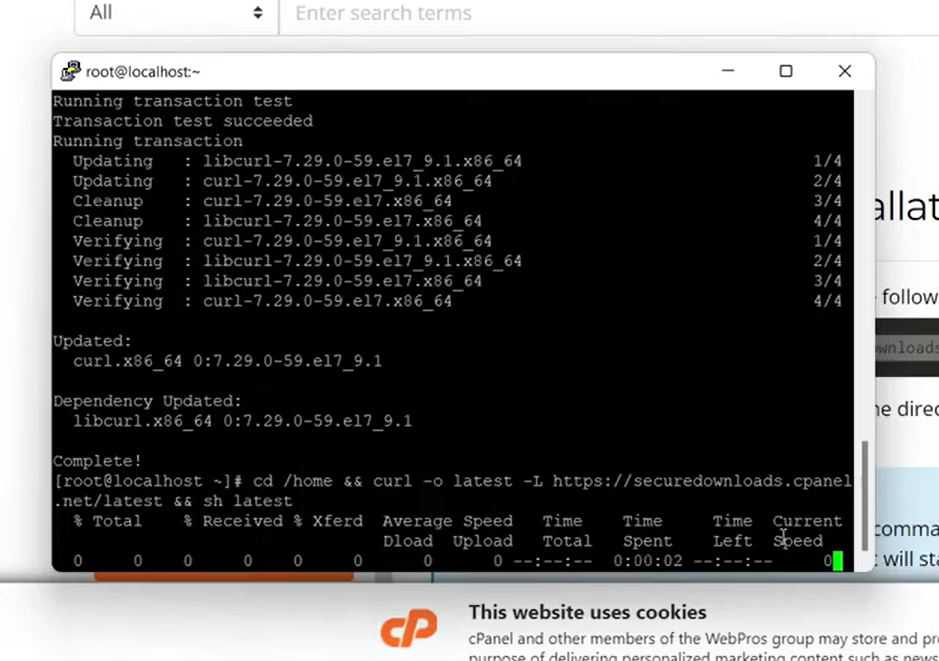
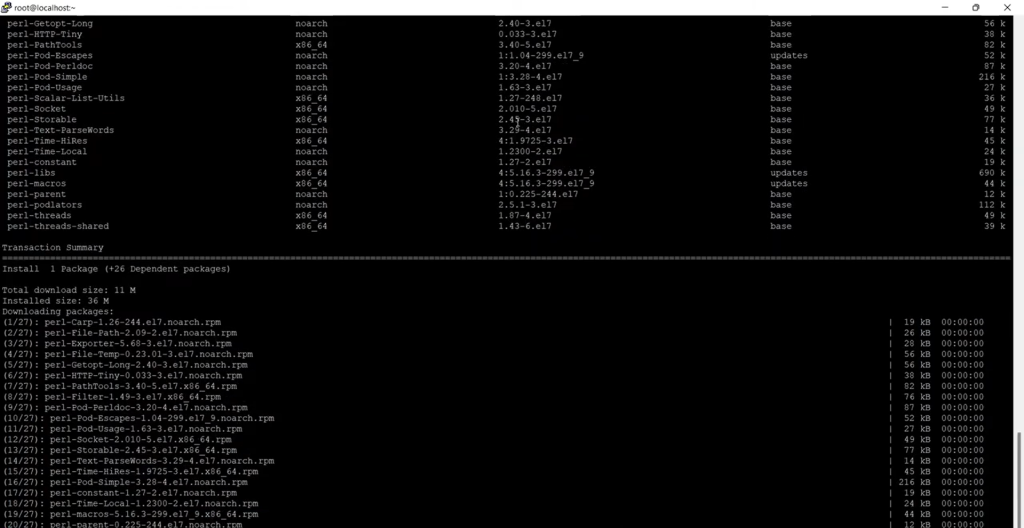
Start the installation. At this point, patience is key.
The installation can take 30 to 60 minutes, depending on your server’s performance.
You’ll see a lot of text scrolling on the screen—this is normal. Avoid closing the SSH session during installation.
Step 6: Access WHM After Installation
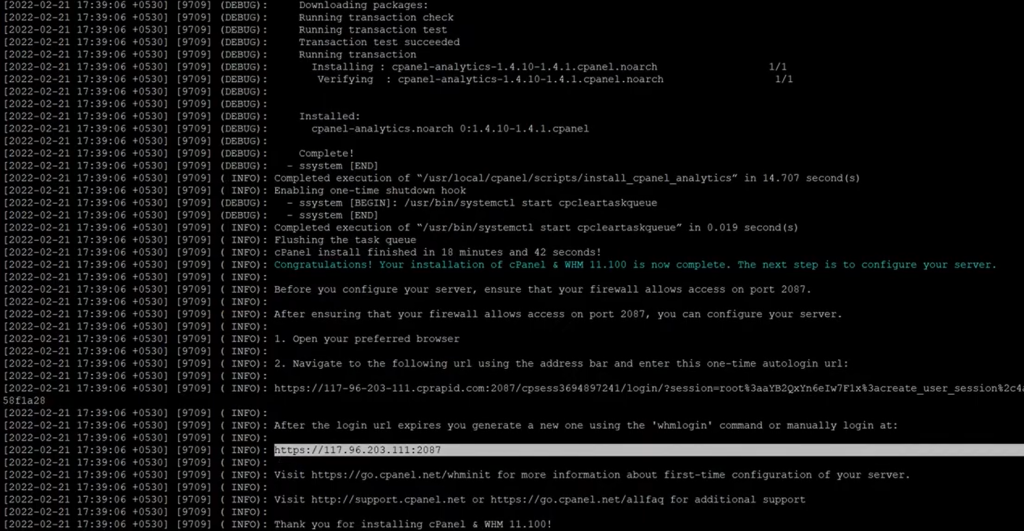
Once the installation is complete, cPanel will display a message confirming success.
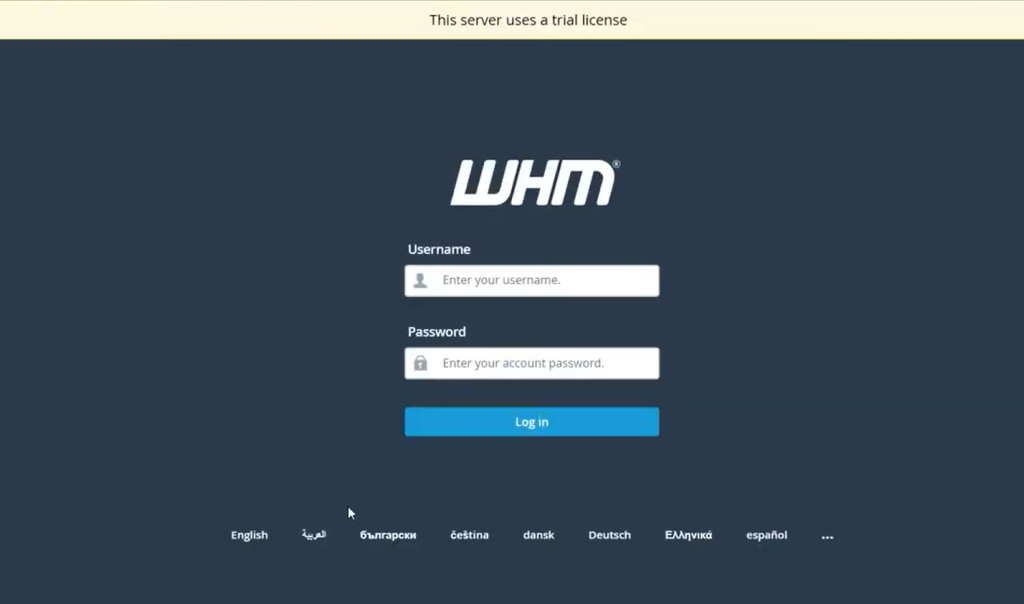
To access WHM, open your browser and visit:
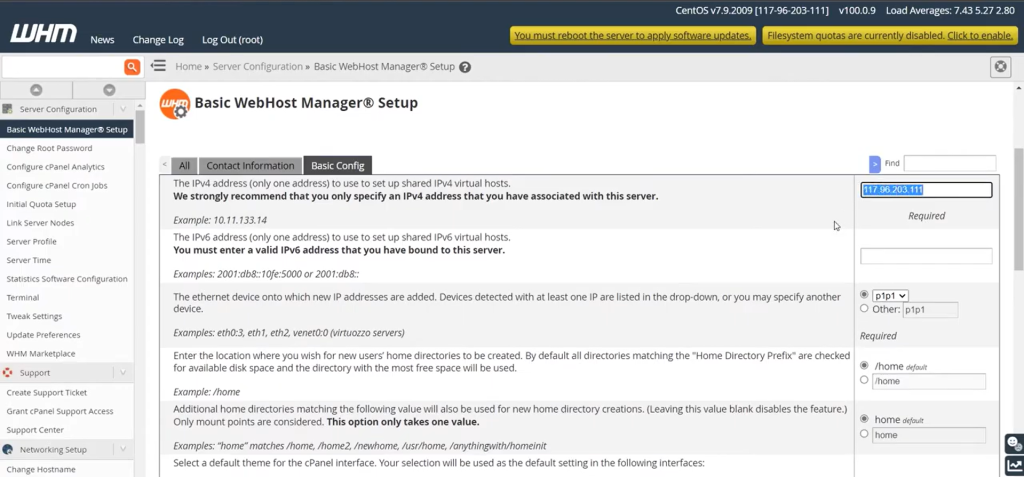
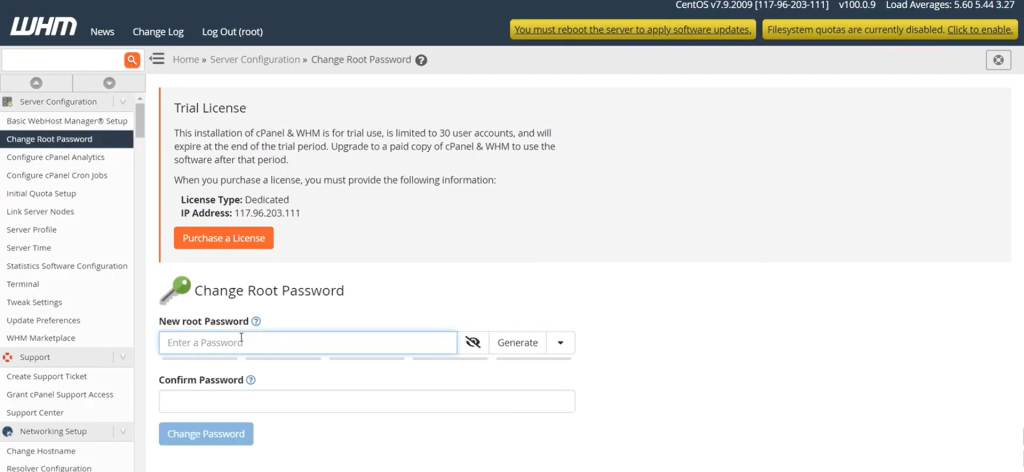
Step 7: Complete the Initial WHM Setup Wizard
The first time you log in, WHM will guide you through a setup wizard. This step makes cPanel feel much more beginner-friendly.

You’ll be asked to:
- Accept the license agreement
- Set up networking and IP addresses
- Choose default services (mail server, FTP, etc.)
- Configure basic security settings
- Create your first hosting package
Take your time here. These settings can always be changed later.
Common Problems Beginners Face (And How to Avoid Them)
Even though cPanel installation is mostly automated, beginners often hit a few bumps.
Installation Stuck or Fails
- Make sure your OS is supported
- Ensure enough RAM and disk space
- Avoid installing on a pre-configured server
Cannot Access WHM
- Check if port 2087 is open in your firewall
- Disable third-party firewalls temporarily
- Confirm installation completed successfully
License Errors
- cPanel needs a valid license tied to your server IP
- Trial licenses expire quickly—don’t ignore renewal
Why cPanel Is Still Worth It in 2026
With many control panels available today, you might wonder if cPanel is still relevant in 2026. The answer is yes, especially for beginners.
- It’s stable and well-maintained
- Hosting companies widely support it
- Tutorials and troubleshooting help are everywhere
- It saves time and reduces mistakes
For someone learning server management, cPanel acts like training wheels—helpful, reliable, and confidence-boosting.
Final Thoughts
Installing cPanel on a server may look intimidating at first, but once you break it down into steps, it’s surprisingly manageable—even for beginners. The key is starting with the right operating system, following the installation process patiently, and not skipping basic setup steps.
If you’re new to server administration in 2026, cPanel remains one of the easiest and safest ways to get started. It lets you focus more on building websites and less on fighting the command line.
Take it slow, follow the steps, and before you know it, you’ll be managing your server like a pro.
How long does the installation process take?
The installation typically takes between 30 and 90 minutes, depending on server performance and internet speed. During this time, a lot of text will scroll on the screen, which is completely normal.
Which operating systems are supported in 2026?
In 2026, this control panel officially supports RHEL-based operating systems such as AlmaLinux 8 and 9, Rocky Linux 8 and 9, and CloudLinux. These systems are chosen because they offer long-term stability, predictable package management, and strong security updates. They are also widely used in commercial hosting environments, which ensures compatibility with server services like web servers, databases, and mail systems. Using one of these operating systems significantly reduces installation errors and future maintenance issues.
Is this control panel suitable for beginners?
Yes, this control panel is considered one of the most beginner-friendly options available. It provides a graphical interface that simplifies tasks such as managing files, creating email accounts, handling databases, and configuring domains. Instead of relying heavily on command-line instructions, beginners can perform most tasks using menus and forms. This reduces the learning curve and helps new server administrators gain confidence quickly.
Is a license required to use this software?
Yes, a valid license is required for long-term use. While the installation process may begin without an active license, full functionality depends on proper license activation linked to the server’s IP address. Trial licenses are usually available for a limited time, allowing users to explore features before committing. Once the trial expires, an active license is necessary to continue receiving updates and support.
Is this control panel still relevant in 2026?
Yes, it remains highly relevant in 2026. Despite the availability of newer tools, this control panel continues to be widely used due to its stability, extensive documentation, and strong community support. Hosting providers and server administrators trust it because it has a proven track record and integrates well with modern hosting environments. For beginners and professionals alike, it remains a reliable choice for managing servers efficiently.
Do I need to reinstall my server if I am using Ubuntu?
Yes, reinstalling the server is necessary if your current operating system is Ubuntu. Since direct installation on Ubuntu is unsupported, the only safe approach is to reinstall the server with a compatible operating system. Most VPS and cloud providers allow you to reinstall the OS from their control panel within minutes. While this process will erase existing data, it ensures a clean environment and prevents long-term technical problems that can arise from forced or unofficial installations.
Is root access required for installation?
Yes, root access is absolutely required. The installation process modifies system-level settings, installs core services, manages firewall rules, and configures networking components. These actions cannot be performed using a regular user account. Without root access, the installer will fail or stop midway. For security reasons, many providers disable direct root access by default, so it’s important to confirm that you have full administrative privileges before starting.
Leave a Reply