
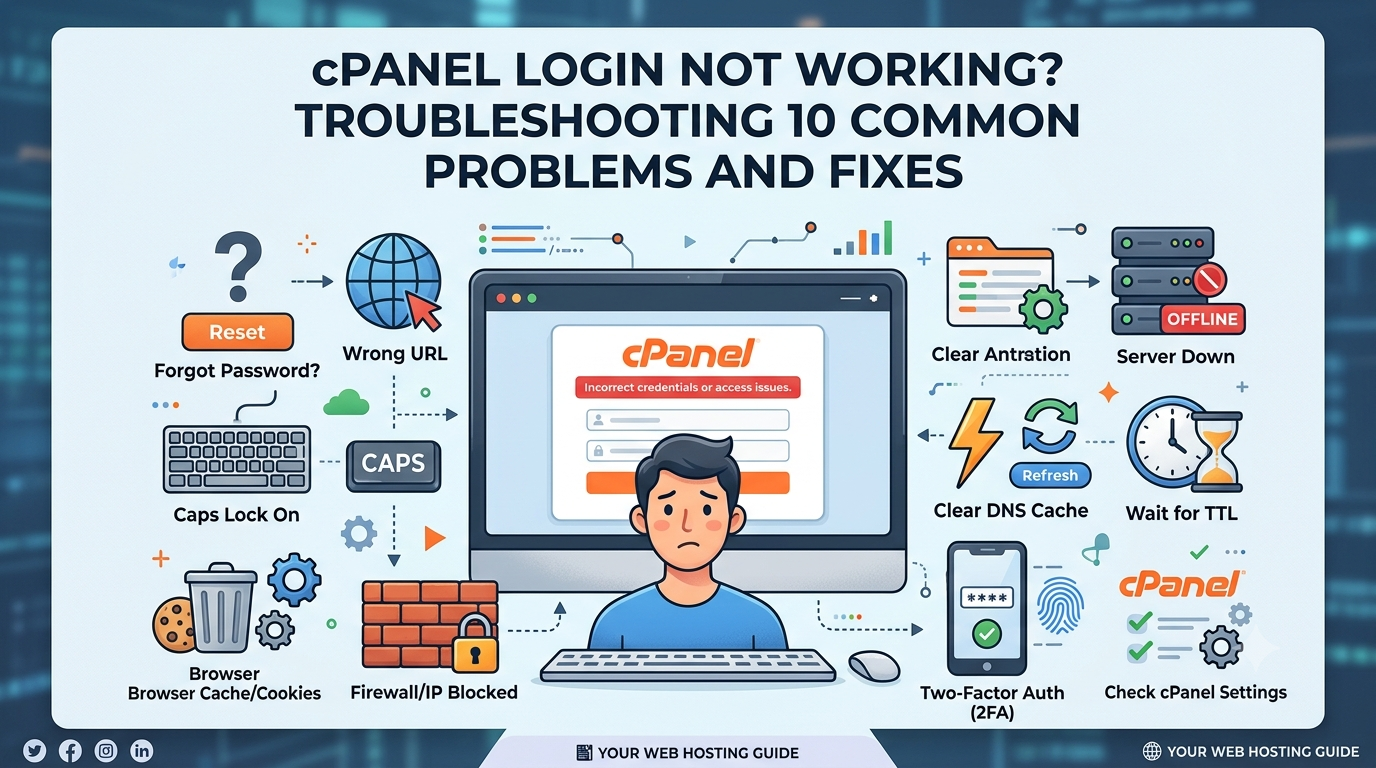


Have you ever tried to access your website’s control panel, only to find that the cPanel login page refuses to cooperate? Maybe your password is not working, the page keeps loading, or you see an error message that makes no sense. Whatever the issue, being unable to access cPanel can be frustrating, especially when you need to manage your website, email accounts, databases, or files.
The good news is that most cPanel login problems have simple explanations and can be fixed without advanced technical knowledge.
In this guide, we will explore 10 common reasons why your cPanel login may not be working and explain how to resolve each one. Whether you are a beginner or an experienced website owner, these practical solutions will help you troubleshoot the issue and get back to managing your website.
Table of Contents
What Is cPanel Login?

cPanel is a web hosting control panel that allows you to manage different aspects of your hosting account through a graphical interface. Instead of using complicated commands, you can create email accounts, manage website files, install applications, configure databases, and perform other hosting tasks from one place.
The cPanel login process usually requires a username and password provided by your hosting company. Depending on your hosting provider, you may access the login page through a direct URL, your hosting dashboard, or a custom login address.
If your cPanel login is not working, the problem could be related to incorrect credentials, browser settings, network restrictions, server issues, or your hosting account itself.
Let’s look at the most common causes and their solutions.
Incorrect Username or Password

One of the most common reasons a cPanel login fails is entering the wrong username or password. It sounds obvious, but small typing mistakes happen more often than you might think.
You may have accidentally enabled Caps Lock, copied an extra space along with your password, or entered the credentials for a different hosting account.
How to fix it:
- Double-check your cPanel username and password.
- Make sure Caps Lock is turned off.
- Check whether your keyboard language or layout has changed.
- If you use a password manager, confirm that it has saved the correct credentials.
- Use the password reset option if your hosting provider offers one.
Remember that your cPanel credentials may be different from your website administrator login, email login, or hosting account password.
If you recently changed your hosting password, try the updated credentials. If the problem continues, contact your hosting provider to verify the correct login details.
You Are Using the Wrong cPanel Login URL
Sometimes, the login credentials are correct, but you are trying to access cPanel through the wrong address.
Hosting providers may offer different login URLs depending on your server configuration. Common access methods include yourdomain.com/cpanel, yourdomain.com:2083, or a login link inside your hosting account dashboard.
However, these addresses do not work in every hosting environment. For example, a domain may not point to the correct server yet, or the provider may use a custom hostname.
How to fix it:
- Log in to your hosting provider’s official client dashboard.
- Look for a button labeled cPanel, Login to cPanel, or Manage Hosting.
- Click the official link to open the control panel.
- If you prefer direct access, confirm the correct URL with your hosting provider.
For a secure connection, use HTTPS and verify that the address belongs to your hosting provider or the hostname they supplied.
Avoid clicking login links from suspicious emails or unfamiliar websites. A fake login page could be designed to steal your credentials.
Browser Cache and Cookies Are Causing Problems
Your browser stores temporary files and cookies to help websites load faster and remember your sessions. Sometimes, outdated or corrupted data can interfere with the cPanel login process.
You might find that the login page keeps refreshing, returns you to the login screen, or refuses to maintain your session.
How to fix it:
Start by opening the cPanel login page in an incognito or private browsing window. If you can log in successfully, your regular browser’s stored data may be causing the issue.
Next, try these steps:
- Clear the cache and cookies for your hosting website.
- Close and reopen your browser.
- Update your browser to the latest version.
- Temporarily disable browser extensions that may interfere with the login page.
You can also try another browser to see whether the issue is browser-specific.
If private browsing solves the problem, you probably do not need to change your hosting settings. Clearing the relevant browser data should be enough.
Too Many Failed Login Attempts

Repeatedly entering an incorrect password can trigger security restrictions on your hosting account or server.
Hosting providers often use security systems to block suspicious login activity. Depending on the configuration, several failed attempts may temporarily restrict access to cPanel or your IP address.
This can happen even if you eventually enter the correct password.
How to fix it:
First, stop trying to log in repeatedly. Continued attempts may extend the restriction or trigger additional security measures.
Then:
- Wait for the temporary restriction to expire, if your provider uses one.
- Verify your login credentials before trying again.
- Contact your hosting provider if you remain locked out.
- Ask whether your IP address has been blocked by the server’s security system.
If you use a VPN or frequently switch networks, mention this to your hosting support team. A change in IP address may affect how security rules apply to your connection.
Do not try to bypass security controls. Your hosting provider can confirm the reason for the restriction and restore access safely.
Your IP Address Has Been Blocked

Your hosting server may block your IP address if it detects suspicious activity, repeated failed logins, or requests that trigger firewall rules.
When this happens, the cPanel login page may fail to load, time out, or display an access-denied message.
This issue can be confusing because the login page may work perfectly on another internet connection.
How to fix it:
Try accessing cPanel from a different trusted network, such as your mobile data connection. If it works there but not on your regular network, an IP-related restriction may be involved.
Next, contact your hosting provider and ask them to check whether your IP address has been blocked.
You can also restart your router if your internet provider assigns dynamic IP addresses, although this will not always give you a new address.
Avoid repeatedly changing networks to get around a security block. The better solution is to identify why the restriction occurred and ask your hosting provider to resolve it.
Your Hosting Account Has Been Suspended
If your hosting account has been suspended, you may lose access to cPanel or find that certain features are no longer available.
Hosting accounts can be suspended for several reasons, including unpaid invoices, resource usage violations, security concerns, or breaches of the provider’s acceptable-use policies.
In some cases, your website may also display a suspension notice.
How to fix it:
Log in to your hosting provider’s customer portal and check your account status. Look for outstanding invoices, suspension notifications, or messages from the hosting support team.
If there is an unpaid invoice, settle it through the provider’s official billing system. If the suspension is related to resource usage or a security issue, contact support for details.
Ask the provider what needs to happen before your account can be restored.
Keep in mind that paying an invoice may not immediately restore access, as some suspensions require manual review. Avoid making changes to your website until you understand the reason for the suspension.
SSL Certificate or HTTPS Problems
Security certificates help protect the connection between your browser and the hosting server. If a certificate is expired, incorrectly configured, or does not match the hostname, your browser may display a security warning.
This can prevent you from reaching the cPanel login page or make you unsure whether the connection is safe.
How to fix it:
First, check that you are using the correct HTTPS address supplied by your hosting provider. If your domain’s SSL certificate is not configured correctly, try the provider’s official server hostname or dashboard login link.
If the warning persists, contact hosting support and ask them to check the certificate associated with the login hostname.
Do not enter your password on a page that displays an unexpected certificate warning until the issue has been verified.
Also, remember that a certificate warning and a failed login are different problems. An SSL issue affects the security of the connection, while an authentication issue involves verifying your credentials.
DNS Problems or Recent Domain Changes
DNS translates your domain name into the server address where your website or hosting service is located.
If you recently changed your nameservers, moved your website to a new host, or updated DNS records, your domain may temporarily point to the wrong server.
As a result, your cPanel login address may open the wrong page, fail to connect, or display an unexpected error.
How to fix it:
Start by using the direct cPanel link available in your hosting dashboard. This can help you determine whether the issue is related to your domain’s DNS configuration.
If you recently migrated your website, verify that your domain and hosting account are configured correctly.
You can also ask your hosting provider to confirm the correct server hostname and whether your DNS changes have taken effect.
DNS updates may take time to become visible across different networks. The exact timing depends on factors such as record settings and caching.
If cPanel works through the official server hostname but not through your domain, the problem is more likely related to DNS or domain configuration than your login credentials.
Firewall, VPN, or Antivirus Software Is Blocking Access
Sometimes, your computer’s security software or network settings interfere with the connection to cPanel.
Corporate firewalls, VPN services, antivirus tools, and restrictive network policies may block certain ports or flag the connection as suspicious.
For example, standard secure cPanel access commonly uses port 2083. If that connection is blocked, the login page may not open.
How to fix it:
Try accessing cPanel from another trusted network. If it works, your original network or security configuration may be responsible.
You can then:
- Check whether your VPN is interfering with the connection.
- Ask your network administrator whether access to the required port is restricted.
- Review antivirus or firewall logs for blocked connections.
- Ask your hosting provider which ports and hostnames should be accessible.
Do not permanently disable your antivirus or firewall just to access cPanel. If a security tool is blocking the connection, identify the specific rule and make only the necessary changes.
The cPanel Server Is Experiencing Technical Issues
Sometimes, the problem has nothing to do with your credentials, browser, or internet connection. Your hosting server may be undergoing maintenance, experiencing an outage, or dealing with a temporary service failure.
When this happens, the cPanel login page may remain unavailable even when you follow all the correct steps.
How to fix it:
Check your hosting provider’s official status page or service announcements to see whether there is a known outage.
You can also contact the support team and ask them to check the cPanel service on your server.
If the issue is caused by maintenance or a server-side problem, you may need to wait until the provider resolves it.
Avoid repeatedly resetting your password or changing your browser settings when the server itself is unavailable. These actions will not fix a hosting-side outage.
If the issue continues longer than expected, request an update from support and ask whether the problem affects your entire server or only your account.
Tips to Prevent Future cPanel Login Problems
Once your cPanel login is working again, a few simple habits can help prevent similar problems in the future.
- Use a strong password: Choose a unique password that is difficult to guess.
- Store credentials securely: Use a reputable password manager rather than keeping passwords in unsecured notes.
- Enable additional security features: Use multi-factor authentication if your hosting provider supports it.
- Bookmark the correct login page: Save the official cPanel URL to avoid using outdated or incorrect addresses.
- Keep your browser updated: Updates help improve compatibility and security.
- Monitor your hosting account: Check billing notifications, security alerts, and maintenance announcements.
- Avoid repeated login attempts: Verify your credentials before trying again to reduce the risk of a temporary lockout.
These small steps can make managing your hosting account easier and help you avoid unnecessary interruptions.
Conclusion
A cPanel login problem can interrupt your work, but it does not always mean something serious is wrong with your hosting account. In many cases, the cause is as simple as an incorrect password, outdated browser cookies, or an incorrect login URL.
Start with the basic checks, such as verifying your credentials and opening the official login link. If those steps do not work, investigate IP restrictions, DNS settings, SSL errors, and possible server issues.
If you have tried the appropriate fixes and still cannot access cPanel, contact your hosting provider. Their support team can check server logs, security restrictions, and account settings that may not be accessible to you.
With a systematic approach, you can identify the cause of most cPanel login issues and restore access without wasting time on unnecessary changes.
FAQs
Q. Why is my cPanel login not working?
A. Your cPanel login may fail because of an incorrect username or password, a wrong login URL, browser cache problems, IP restrictions, account suspension, or server issues. Start by checking your credentials and using the official login link provided by your hosting company.
Q. How do I reset my cPanel password?
A. The password reset process depends on your hosting provider. You may be able to reset it through your hosting dashboard or use a password recovery option on the login page. If neither option is available, contact your hosting provider for assistance.
Q. What is the correct URL for cPanel login?
A. Common cPanel access methods include https://yourdomain.com:2083 and https://yourdomain.com/cpanel. However, the correct URL depends on your hosting configuration. Your hosting dashboard or welcome email should provide the appropriate login address.
Q. Why does cPanel keep redirecting me to the login page?
A. Repeated redirects may be caused by corrupted cookies, browser issues, session problems, or server configuration errors. Try using a private browsing window, clearing the relevant cookies, or switching browsers. If the problem continues, contact hosting support.
Q. Can my IP address be blocked from cPanel?
A. Yes. Hosting security systems may block an IP address after repeated failed login attempts or suspicious activity. Contact your hosting provider to confirm whether your IP address is restricted and request assistance restoring access.
Q. Why does cPanel show a connection timed-out error?
A. A timeout can occur because of network restrictions, blocked ports, server downtime, or connectivity problems. Try another trusted network and check your hosting provider’s service status. If the issue persists, ask support to investigate the server connection.
Q. Does a website SSL certificate problem affect cPanel login?
A. It can, particularly when the certificate for your domain or login hostname is invalid or incorrectly configured. Try the official hosting dashboard link and ask your provider to verify the certificate. Do not ignore unexpected security warnings.
Q. Why can I access my website but not cPanel?
A. Your website and cPanel use different services and may rely on different ports or access rules. Your website may continue working even if cPanel is blocked, unavailable, or affected by an authentication problem.
Q. Will clearing browser cache fix my cPanel login problem?
A. Clearing cache and cookies can resolve issues caused by outdated browser data or corrupted login sessions. However, it will not fix incorrect credentials, a suspended account, blocked IP addresses, or server outages.
Q. What should I do if none of the cPanel login fixes work?
A. If the usual troubleshooting steps do not help, contact your hosting provider. Share the exact error message, when the problem started, and which solutions you have already tried. Ask the support team to check your account status, login restrictions, server connectivity, and cPanel service availability.
Leave a Reply